> ## Documentation Index
> Fetch the complete documentation index at: https://docs.chartcastr.com/llms.txt
> Use this file to discover all available pages before exploring further.
# Granola meeting notes as context
> Link Granola meeting notes to Chartcastr sources so AI pulse summaries correlate metric changes with recent decisions and action items.
**State**: Available on all plans. Requires a Granola **Business** or **Enterprise** plan for API access.
## Overview
Link Granola meeting notes to your Chartcastr Sources to provide meeting context for your automated pulses. This is perfect for:
* Correlating metric changes with recent meetings and decisions
* Adding meeting summaries as context for chart analysis
* Understanding the "why" behind data trends using meeting notes
## How It Works
1. **Connect Granola**: Enter your Granola API key in the Integrations settings.
2. **Link Context**: From any Source details page, click "Add Source Context" and select Granola.
3. **Select Notes**: Browse and select meeting notes to use as context for your charts.
4. **AI Analysis**: Our AI automatically uses the meeting summaries to provide deeper insights into your pulse summaries, connecting your live data to your meeting context.
## Setup
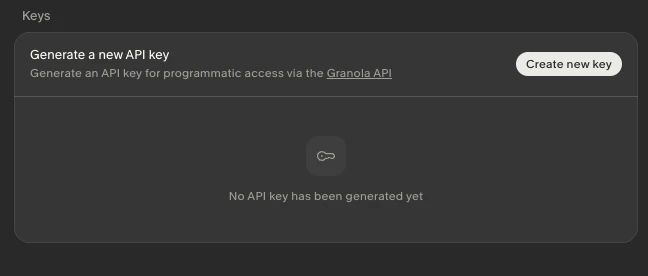
Open the **Granola desktop app**, go to **Settings → API → Create new key**, and generate a key.
 Granola offers two key types — either works with Chartcastr:
| Key Type | Scope | Plan Required |
| ---------------------- | ----------------------------------------------------------------------------------- | ----------------------- |
| **Personal API key** | Your own notes, notes shared with you, and notes in private folders shared with you | Business or Enterprise |
| **Enterprise API key** | All notes in the Team space (org-wide, excludes private notes/folders) | Enterprise only (admin) |
**Which key should I use?** Use a **Personal API key** if you want to attach your own meeting notes as context. Use an **Enterprise API key** if a workspace admin wants to provide org-wide meeting context across all team members' notes.
On Enterprise plans, workspace admins can control whether members can create Personal API keys via the **"Allow personal API keys"** toggle in **Settings → Workspace**.
In Chartcastr, go to **Settings** → **Source Integrations** and find the **Granola** card. Enter your API key and click **Test & Connect**.
From any Source or Source Group detail page, click **Add Source Context**, select **Granola**, and browse your meeting notes. Select the notes relevant to the data you're tracking.
## What Gets Cached
When you attach a Granola meeting note, Chartcastr caches the following information for AI analysis:
* **Meeting title** and date/time
* **Attendees** (names and emails)
* **AI-generated summary** (in markdown format)
* **Folder membership** for organizational context
Full transcripts are not cached to keep token usage efficient. The AI summary provides the most relevant context in a compact form.
## Benefits
By linking Granola meeting notes, your AI-generated summaries will understand the "why" behind your data:
* Correlate metric spikes with decisions made in recent meetings
* Include meeting context in your daily or weekly pulses
* Get smarter answers to follow-up questions in Slack based on your meeting history
## Access Scope
What notes you can browse in Chartcastr depends on which API key type you use:
| Key Type | What You Can Access |
| ---------------------- | ---------------------------------------------------------------------------------------------------- |
| **Personal API key** | Notes you own, notes shared with you, notes in private folders shared with you |
| **Enterprise API key** | All notes in the Team space (everything workspace members can read, excluding private notes/folders) |
If your organization has multiple Granola workspaces, you'll need a separate API key per workspace.
## Rate Limits
Granola enforces rate limits per user (Personal) or per workspace (Enterprise):
| Metric | Value |
| -------------- | ------------------------------ |
| Burst capacity | 25 requests |
| Time window | 5 seconds |
| Sustained rate | 5 requests/second (300/minute) |
Chartcastr respects these limits when browsing and fetching notes.
## FAQ
A **Business** or **Enterprise** plan. Personal API keys are available on both. Enterprise API keys require the Enterprise plan and must be created by a workspace admin.
Granola also offers an MCP (Model Context Protocol) integration for conversational AI tools like Claude and ChatGPT. The MCP uses browser-based OAuth and is designed for interactive chat. For Chartcastr's automated context enrichment, the API key approach is the right fit since it runs in the background without user interaction.
Not yet — Granola's webhook support is on their roadmap. Currently, Chartcastr fetches note content when you attach a note as context.
Granola offers two key types — either works with Chartcastr:
| Key Type | Scope | Plan Required |
| ---------------------- | ----------------------------------------------------------------------------------- | ----------------------- |
| **Personal API key** | Your own notes, notes shared with you, and notes in private folders shared with you | Business or Enterprise |
| **Enterprise API key** | All notes in the Team space (org-wide, excludes private notes/folders) | Enterprise only (admin) |
**Which key should I use?** Use a **Personal API key** if you want to attach your own meeting notes as context. Use an **Enterprise API key** if a workspace admin wants to provide org-wide meeting context across all team members' notes.
On Enterprise plans, workspace admins can control whether members can create Personal API keys via the **"Allow personal API keys"** toggle in **Settings → Workspace**.
In Chartcastr, go to **Settings** → **Source Integrations** and find the **Granola** card. Enter your API key and click **Test & Connect**.
From any Source or Source Group detail page, click **Add Source Context**, select **Granola**, and browse your meeting notes. Select the notes relevant to the data you're tracking.
## What Gets Cached
When you attach a Granola meeting note, Chartcastr caches the following information for AI analysis:
* **Meeting title** and date/time
* **Attendees** (names and emails)
* **AI-generated summary** (in markdown format)
* **Folder membership** for organizational context
Full transcripts are not cached to keep token usage efficient. The AI summary provides the most relevant context in a compact form.
## Benefits
By linking Granola meeting notes, your AI-generated summaries will understand the "why" behind your data:
* Correlate metric spikes with decisions made in recent meetings
* Include meeting context in your daily or weekly pulses
* Get smarter answers to follow-up questions in Slack based on your meeting history
## Access Scope
What notes you can browse in Chartcastr depends on which API key type you use:
| Key Type | What You Can Access |
| ---------------------- | ---------------------------------------------------------------------------------------------------- |
| **Personal API key** | Notes you own, notes shared with you, notes in private folders shared with you |
| **Enterprise API key** | All notes in the Team space (everything workspace members can read, excluding private notes/folders) |
If your organization has multiple Granola workspaces, you'll need a separate API key per workspace.
## Rate Limits
Granola enforces rate limits per user (Personal) or per workspace (Enterprise):
| Metric | Value |
| -------------- | ------------------------------ |
| Burst capacity | 25 requests |
| Time window | 5 seconds |
| Sustained rate | 5 requests/second (300/minute) |
Chartcastr respects these limits when browsing and fetching notes.
## FAQ
A **Business** or **Enterprise** plan. Personal API keys are available on both. Enterprise API keys require the Enterprise plan and must be created by a workspace admin.
Granola also offers an MCP (Model Context Protocol) integration for conversational AI tools like Claude and ChatGPT. The MCP uses browser-based OAuth and is designed for interactive chat. For Chartcastr's automated context enrichment, the API key approach is the right fit since it runs in the background without user interaction.
Not yet — Granola's webhook support is on their roadmap. Currently, Chartcastr fetches note content when you attach a note as context.