> ## Documentation Index
> Fetch the complete documentation index at: https://docs.chartcastr.com/llms.txt
> Use this file to discover all available pages before exploring further.
# Microsoft Teams destination
> Deliver scheduled charts and AI summaries to Microsoft Teams channels, and ask follow-up questions that Chartcastr answers right in the thread.
## Overview
The Microsoft Teams integration delivers your scheduled charts (Pulses) to Teams
channels as Adaptive Cards, with the AI analysis posted as threaded replies.
Reply in the pulse thread to ask a follow-up question — Chartcastr answers in
the same thread, in real time.
## Features
* **Channel delivery**: Pulses arrive as Adaptive Cards with the chart image, a
short AI summary, and highlights.
* **Threaded analysis**: The long-form analysis posts as threaded replies under
the pulse.
* **Real-time follow-ups**: Ask a question in the thread and Chartcastr replies
in the thread — no @mention required when resource-specific consent is granted.
* **Scheduled reports**: Daily, weekly, or custom schedules.
## Setup
In Chartcastr, go to **Settings → Destinations** and click **Connect** next
to Microsoft Teams. Sign in with a Microsoft admin account and grant consent
— this links the Entra tenant to your Chartcastr organisation. No per-user
sign-in is needed after this step; sending uses Chartcastr's bot identity.
Channels only appear in Chartcastr once the bot is installed in a team.
Pick one of the two paths below.
**Path A — Teams Admin Center** (tenant admin; recommended for rollouts)
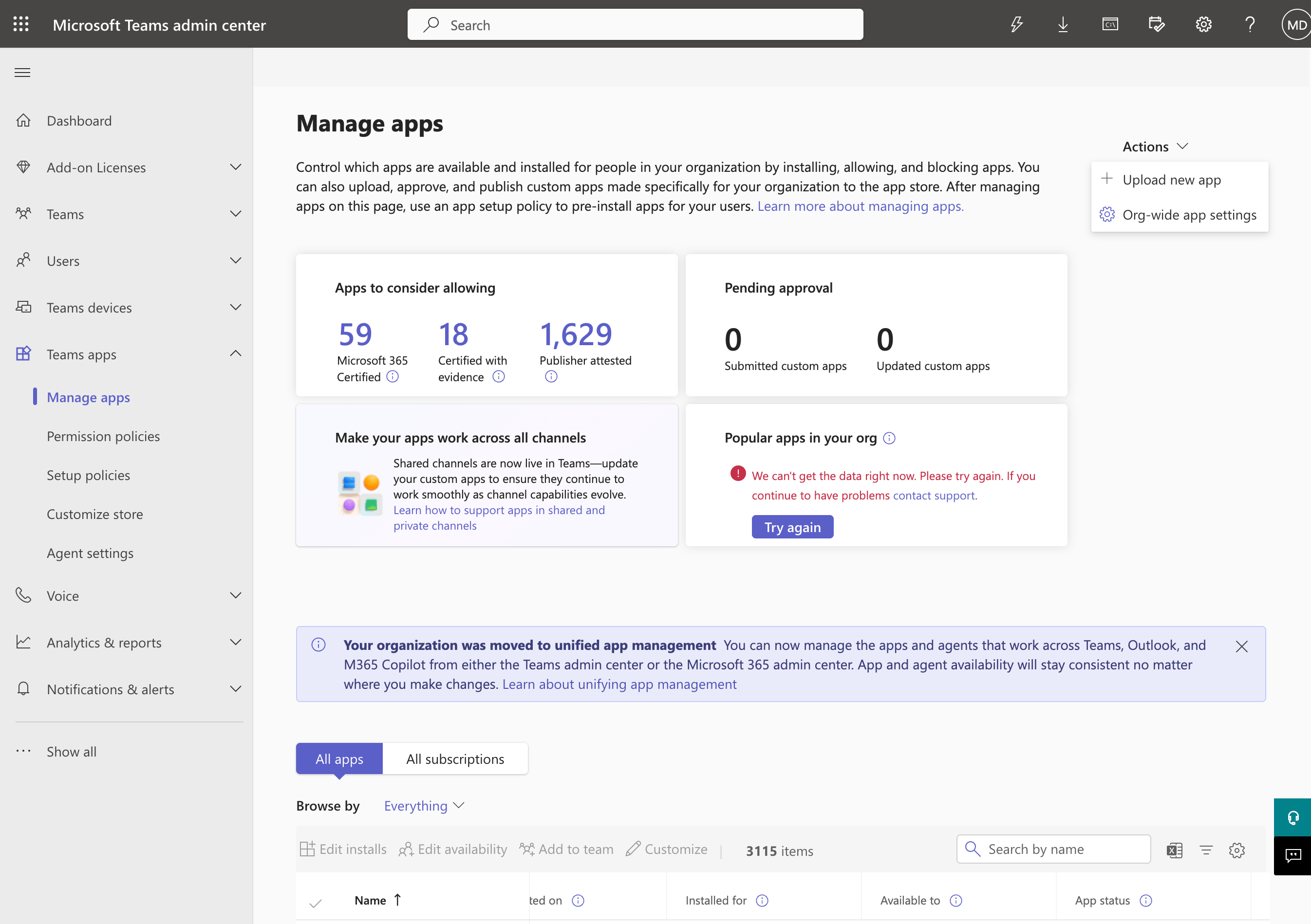
1. Open the [Manage apps page](https://admin.teams.microsoft.com/policies/manage-apps).
Chartcastr appears under **All apps**.
2. Click the **Chartcastr** row → **Users and groups** tab.
3. Click **Install app** → pick the team(s) that should receive pulses → **Apply**.
If the app does not appear, your tenant admin needs to
[upload the custom app package](https://admin.teams.microsoft.com/policies/manage-apps)
first (Manage apps → **Actions → Upload new app → Upload**, then drop the
Chartcastr `.zip`).
 **Path B — Teams client** (any user; fastest for a single team)
1. Open Microsoft Teams (desktop or web).
2. Left sidebar → **Apps** → **Built for your org** → **Chartcastr**.
3. **Add** → **Add to a team** → choose the destination team → **Set up a bot**.
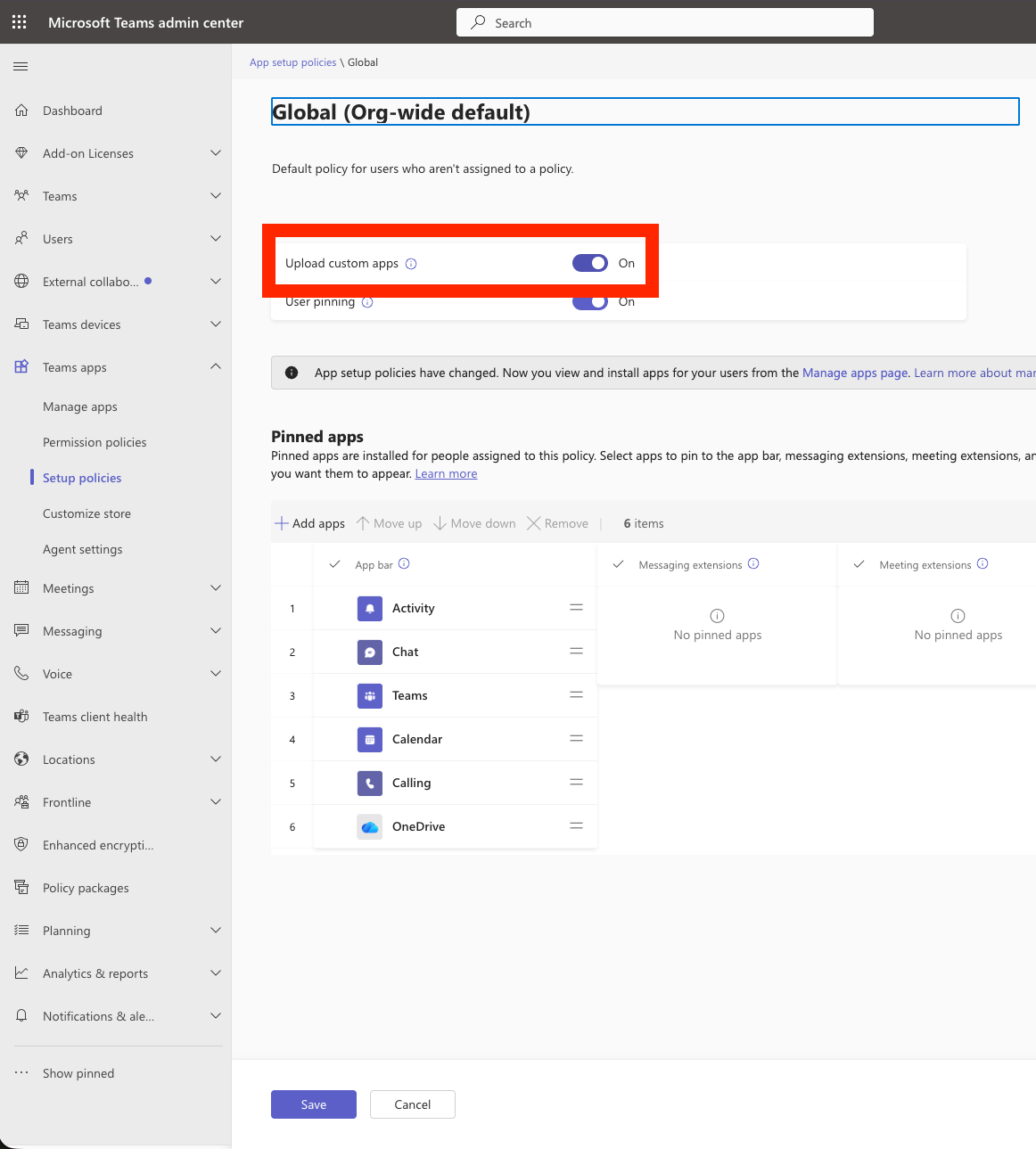
Both paths trigger an `installationUpdate` event that captures the team and
service URL. Custom-app upload may need to be enabled tenant-wide first
([Teams Admin Center → Teams apps → Setup policies → Global](https://admin.teams.microsoft.com/policies/app-setup/edit/R2xvYmFs)
→ **Upload custom apps** = On).
**Path B — Teams client** (any user; fastest for a single team)
1. Open Microsoft Teams (desktop or web).
2. Left sidebar → **Apps** → **Built for your org** → **Chartcastr**.
3. **Add** → **Add to a team** → choose the destination team → **Set up a bot**.
Both paths trigger an `installationUpdate` event that captures the team and
service URL. Custom-app upload may need to be enabled tenant-wide first
([Teams Admin Center → Teams apps → Setup policies → Global](https://admin.teams.microsoft.com/policies/app-setup/edit/R2xvYmFs)
→ **Upload custom apps** = On).
 From the Chartcastr app page in Manage apps, open the **Users and groups**
tab and click **Edit installs**. Choose **Everyone** to roll the app out
org-wide, or scope it to specific users/groups. This controls who can add
Chartcastr to a team — it does not auto-install it for anyone (that still
happens in the previous step, or by individual users from **Built for your
org**).
From the Chartcastr app page in Manage apps, open the **Users and groups**
tab and click **Edit installs**. Choose **Everyone** to roll the app out
org-wide, or scope it to specific users/groups. This controls who can add
Chartcastr to a team — it does not auto-install it for anyone (that still
happens in the previous step, or by individual users from **Built for your
org**).
 Back in Chartcastr, click the **refresh** icon next to the Channel
dropdown. Pick the channel that should receive pulses, save the destination,
and attach a source. The first pulse appears in the channel as soon as the
next schedule fires.
## What gets delivered
* **Root card**: chart image + short AI summary + highlights + a **View in
Chartcastr** button.
* **Thread replies**: the full AI analysis, split into readable sections.
## Follow-up questions
Reply in a pulse thread to ask a follow-up (for example, *"what's driving the
spike?"*). Chartcastr resolves the question against the chart and its analysis
and posts the answer in the same thread. Follow-up volume per pulse is governed
by your plan.
Seamless (no-\@mention) follow-ups require the **`ChannelMessage.Read.Group`**
resource-specific permission, which your Teams admin grants when the app is
added to a team. If RSC is not granted, **@mention the Chartcastr bot** in your
reply and it will still answer.
## Troubleshooting
* **"Add the Chartcastr app to a team first" in the channel picker**: the bot
isn't installed in any team your tenant admin has authorised yet. Follow
Step 2 above, then click the refresh icon next to the Channel dropdown.
* **No channels for a specific team**: the bot is installed in other teams but
not this one. Add it via **Apps → Built for your org → Chartcastr → Add to a
team**.
* **"Upload a custom app" option missing in Teams**: your tenant admin needs to
enable it at [Teams Admin Center → Setup policies → Global](https://admin.teams.microsoft.com/policies/app-setup/edit/R2xvYmFs)
→ **Upload custom apps** = On. Allow \~30 minutes for the policy to propagate.
* **Pulses stopped arriving**: if the app was removed from a team, the
integration is marked broken — reinstall the app and reconnect.
Back in Chartcastr, click the **refresh** icon next to the Channel
dropdown. Pick the channel that should receive pulses, save the destination,
and attach a source. The first pulse appears in the channel as soon as the
next schedule fires.
## What gets delivered
* **Root card**: chart image + short AI summary + highlights + a **View in
Chartcastr** button.
* **Thread replies**: the full AI analysis, split into readable sections.
## Follow-up questions
Reply in a pulse thread to ask a follow-up (for example, *"what's driving the
spike?"*). Chartcastr resolves the question against the chart and its analysis
and posts the answer in the same thread. Follow-up volume per pulse is governed
by your plan.
Seamless (no-\@mention) follow-ups require the **`ChannelMessage.Read.Group`**
resource-specific permission, which your Teams admin grants when the app is
added to a team. If RSC is not granted, **@mention the Chartcastr bot** in your
reply and it will still answer.
## Troubleshooting
* **"Add the Chartcastr app to a team first" in the channel picker**: the bot
isn't installed in any team your tenant admin has authorised yet. Follow
Step 2 above, then click the refresh icon next to the Channel dropdown.
* **No channels for a specific team**: the bot is installed in other teams but
not this one. Add it via **Apps → Built for your org → Chartcastr → Add to a
team**.
* **"Upload a custom app" option missing in Teams**: your tenant admin needs to
enable it at [Teams Admin Center → Setup policies → Global](https://admin.teams.microsoft.com/policies/app-setup/edit/R2xvYmFs)
→ **Upload custom apps** = On. Allow \~30 minutes for the policy to propagate.
* **Pulses stopped arriving**: if the app was removed from a team, the
integration is marked broken — reinstall the app and reconnect.