> ## Documentation Index
> Fetch the complete documentation index at: https://docs.chartcastr.com/llms.txt
> Use this file to discover all available pages before exploring further.
# Typeform source
> Connect Typeform to Chartcastr for automated form response charts. Track submission volume, completion rates, and response trends over time.
## Overview
Use Typeform as a data source for Chartcastr. Connect your Typeform workspace via OAuth and Chartcastr will pull form response metrics — daily responses, completion rates, average completion time, and response volume by form — and deliver them as automated charts to Slack or email.
Chartcastr connects with **read-only** access to your Typeform workspace. No write permissions are requested.
## Setup
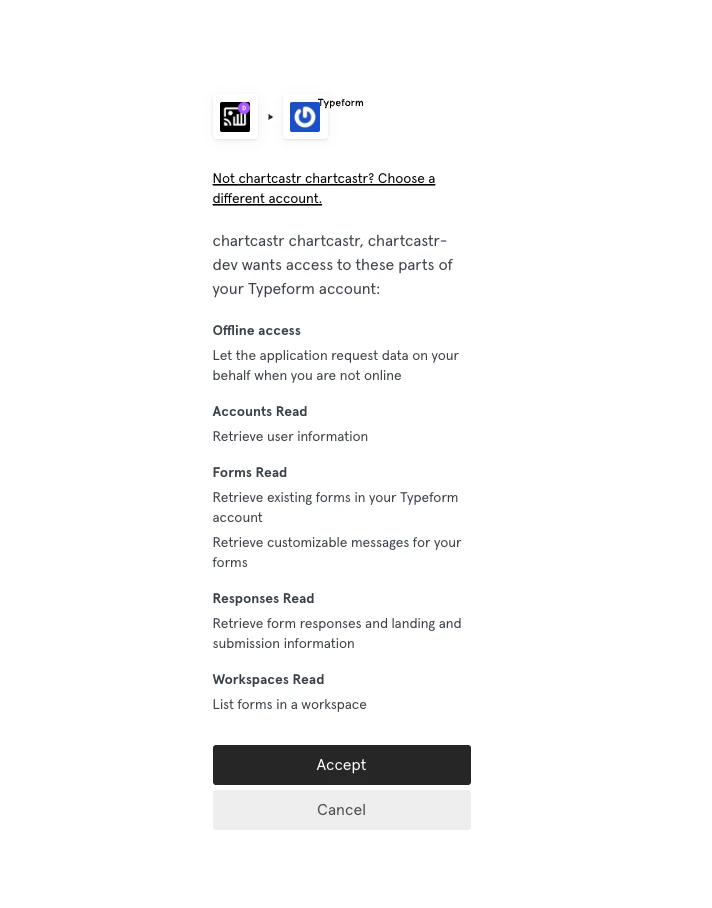
In Chartcastr, go to [Sources](https://chartcastr.com/admin/sources) and select **Typeform**. Click **Connect** and complete the OAuth flow. You will be asked to authorise read-only access to your forms, responses, and workspace.
 Choose which metric you want to track. Each metric becomes its own pulse source — you can add multiple to send different charts on different schedules.
For form-specific metrics (daily responses, completion rate, average completion time), pick the form you want to track. Workspace-level metrics like **Responses by Form** aggregate across all forms automatically.
Go to [Connections](https://chartcastr.com/admin/connections) and click **New Connection**. Select your Typeform source, pick or add a destination (Slack channel or email), set the delivery frequency, and optionally enable AI summaries.
## Available Metrics
Chartcastr supports **4 pre-built Typeform metrics** across responses and forms.
Responses per day, completion rate, and average completion time.
Total responses per form across your workspace (top 10).
See the full list of Typeform metrics with chart types and descriptions.
## Data & Permissions
Chartcastr requests the following Typeform OAuth scopes:
| Scope | Purpose |
| ----------------- | ------------------------------------------------- |
| `accounts:read` | Account information for workspace identification |
| `forms:read` | List and read form definitions |
| `responses:read` | Read form response data for chart generation |
| `workspaces:read` | Access workspace metadata |
| `offline` | Enables refresh tokens for long-lived connections |
No write access is requested. Chartcastr cannot create, modify, or delete any data in your Typeform account.
## Token Refresh
Typeform access tokens expire after approximately one week. Chartcastr handles token refresh automatically using the refresh token granted during the OAuth flow.
If your integration shows as **Disconnected**, re-authorise by going to [Sources](https://chartcastr.com/admin/sources) → your Typeform integration and clicking **Reconnect** in the Danger Zone.
## Next Steps
Deliver Typeform charts to your Slack channels with AI summaries in the thread.
Schedule Typeform reports to any inbox or distribution list.
Choose which metric you want to track. Each metric becomes its own pulse source — you can add multiple to send different charts on different schedules.
For form-specific metrics (daily responses, completion rate, average completion time), pick the form you want to track. Workspace-level metrics like **Responses by Form** aggregate across all forms automatically.
Go to [Connections](https://chartcastr.com/admin/connections) and click **New Connection**. Select your Typeform source, pick or add a destination (Slack channel or email), set the delivery frequency, and optionally enable AI summaries.
## Available Metrics
Chartcastr supports **4 pre-built Typeform metrics** across responses and forms.
Responses per day, completion rate, and average completion time.
Total responses per form across your workspace (top 10).
See the full list of Typeform metrics with chart types and descriptions.
## Data & Permissions
Chartcastr requests the following Typeform OAuth scopes:
| Scope | Purpose |
| ----------------- | ------------------------------------------------- |
| `accounts:read` | Account information for workspace identification |
| `forms:read` | List and read form definitions |
| `responses:read` | Read form response data for chart generation |
| `workspaces:read` | Access workspace metadata |
| `offline` | Enables refresh tokens for long-lived connections |
No write access is requested. Chartcastr cannot create, modify, or delete any data in your Typeform account.
## Token Refresh
Typeform access tokens expire after approximately one week. Chartcastr handles token refresh automatically using the refresh token granted during the OAuth flow.
If your integration shows as **Disconnected**, re-authorise by going to [Sources](https://chartcastr.com/admin/sources) → your Typeform integration and clicking **Reconnect** in the Danger Zone.
## Next Steps
Deliver Typeform charts to your Slack channels with AI summaries in the thread.
Schedule Typeform reports to any inbox or distribution list.