

Overview
The Microsoft Teams integration delivers your scheduled charts (Pulses) to Teams channels as Adaptive Cards, with the AI analysis posted as threaded replies. Reply in the pulse thread to ask a follow-up question — Chartcastr answers in the same thread, in real time.Features
- Channel delivery: Pulses arrive as Adaptive Cards with the chart image, a short AI summary, and highlights.
- Threaded analysis: The long-form analysis posts as threaded replies under the pulse.
- Real-time follow-ups: Ask a question in the thread and Chartcastr replies in the thread — no @mention required when resource-specific consent is granted.
- Scheduled reports: Daily, weekly, or custom schedules.
Setup
1
Connect your Microsoft tenant
In Chartcastr, go to Settings → Destinations and click Connect next
to Microsoft Teams. Sign in with a Microsoft admin account and grant consent
— this links the Entra tenant to your Chartcastr organisation. No per-user
sign-in is needed after this step; sending uses Chartcastr’s bot identity.
2
Add the Chartcastr app to a team
Channels only appear in Chartcastr once the bot is installed in a team.
Pick one of the two paths below.Path A — Teams Admin Center (tenant admin; recommended for rollouts)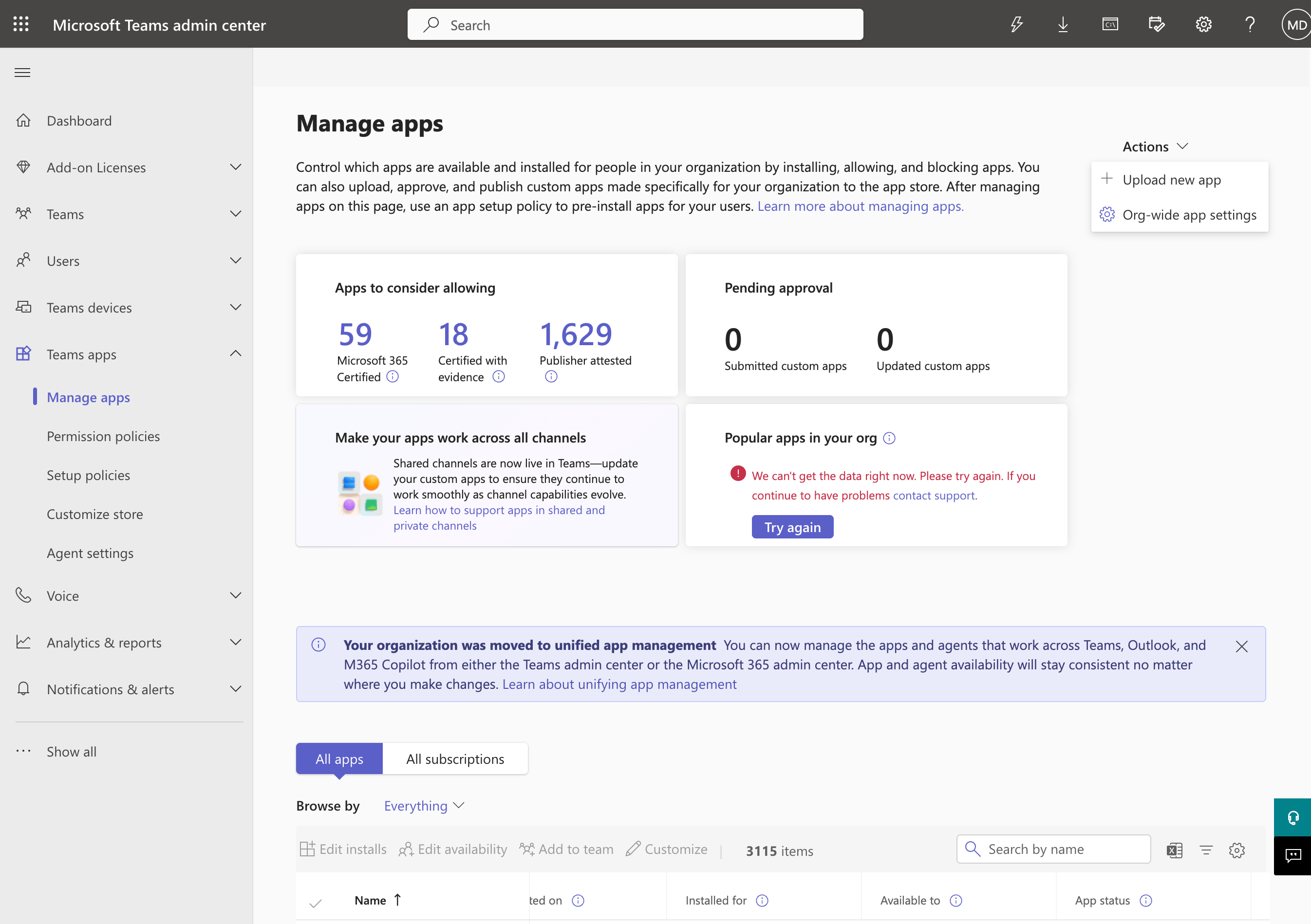
- Open the Manage apps page. Chartcastr appears under All apps.
- Click the Chartcastr row → Users and groups tab.
- Click Install app → pick the team(s) that should receive pulses → Apply.
.zip).- Open Microsoft Teams (desktop or web).
- Left sidebar → Apps → Built for your org → Chartcastr.
- Add → Add to a team → choose the destination team → Set up a bot.
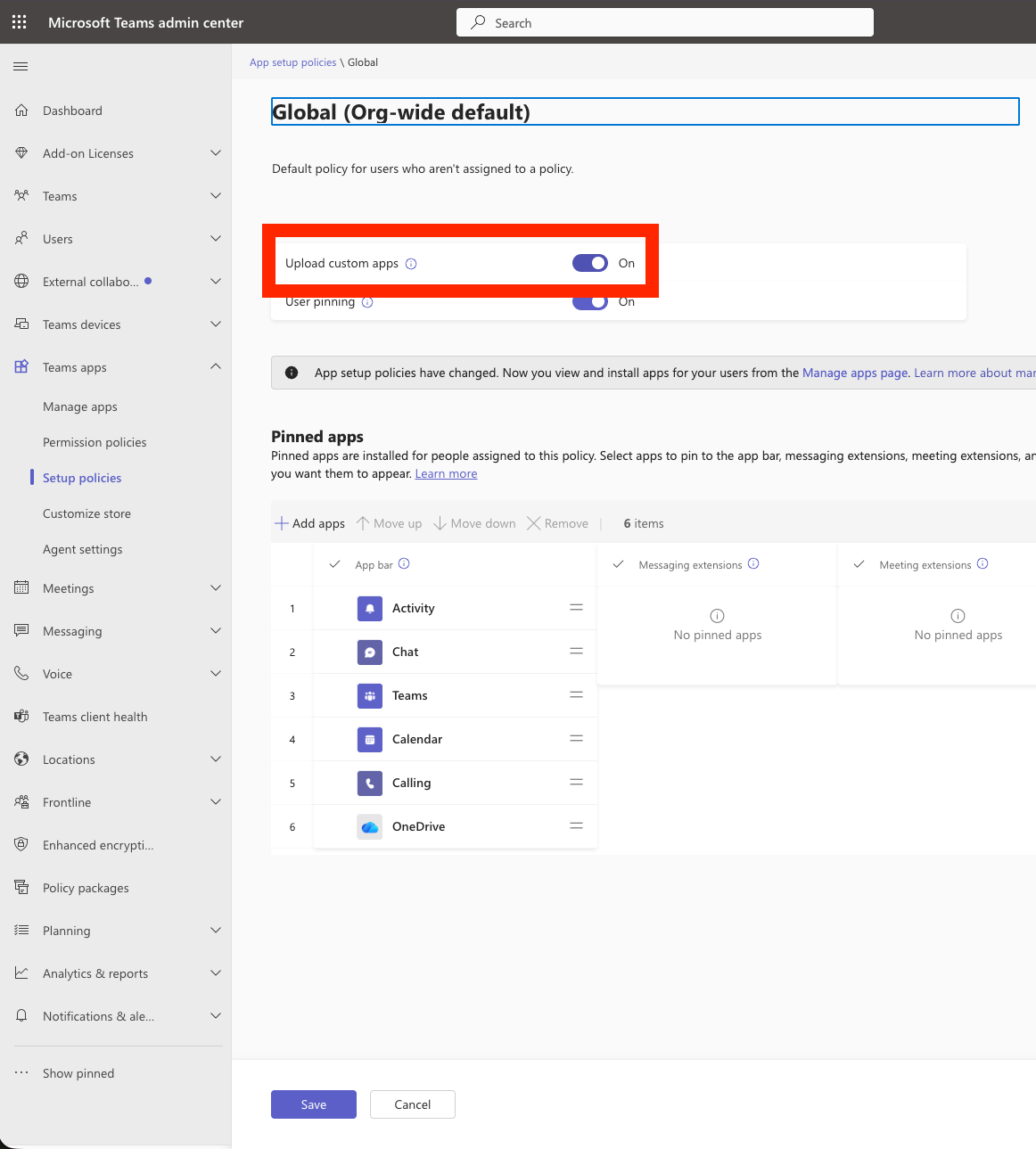
installationUpdate event that captures the team and
service URL. Custom-app upload may need to be enabled tenant-wide first
(Teams Admin Center → Teams apps → Setup policies → Global
→ Upload custom apps = On).3
Choose who can install the app
From the Chartcastr app page in Manage apps, open the Users and groups
tab and click Edit installs. Choose Everyone to roll the app out
org-wide, or scope it to specific users/groups. This controls who can add
Chartcastr to a team — it does not auto-install it for anyone (that still
happens in the previous step, or by individual users from Built for your
org).
4
Create a connection
Back in Chartcastr, click the refresh icon next to the Channel
dropdown. Pick the channel that should receive pulses, save the destination,
and attach a source. The first pulse appears in the channel as soon as the
next schedule fires.
What gets delivered
- Root card: chart image + short AI summary + highlights + a View in Chartcastr button.
- Thread replies: the full AI analysis, split into readable sections.
Follow-up questions
Reply in a pulse thread to ask a follow-up (for example, “what’s driving the spike?”). Chartcastr resolves the question against the chart and its analysis and posts the answer in the same thread. Follow-up volume per pulse is governed by your plan.Seamless (no-@mention) follow-ups require the
ChannelMessage.Read.Group
resource-specific permission, which your Teams admin grants when the app is
added to a team. If RSC is not granted, @mention the Chartcastr bot in your
reply and it will still answer.Troubleshooting
- “Add the Chartcastr app to a team first” in the channel picker: the bot isn’t installed in any team your tenant admin has authorised yet. Follow Step 2 above, then click the refresh icon next to the Channel dropdown.
- No channels for a specific team: the bot is installed in other teams but not this one. Add it via Apps → Built for your org → Chartcastr → Add to a team.
- “Upload a custom app” option missing in Teams: your tenant admin needs to enable it at Teams Admin Center → Setup policies → Global → Upload custom apps = On. Allow ~30 minutes for the policy to propagate.
- Pulses stopped arriving: if the app was removed from a team, the integration is marked broken — reinstall the app and reconnect.