Connect Granola: Enter your Granola API key in the Integrations settings.
Link Context: From any Source details page, click “Add Source Context” and select Granola.
Select Notes: Browse and select meeting notes to use as context for your charts.
AI Analysis: Our AI automatically uses the meeting summaries to provide deeper insights into your pulse summaries, connecting your live data to your meeting context.
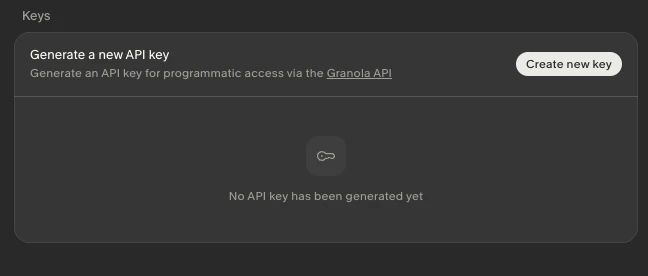
Open the Granola desktop app, go to Settings → API → Create new key, and generate a key.
Granola Settings → API key screen
Granola offers two key types — either works with Chartcastr:
Key Type
Scope
Plan Required
Personal API key
Your own notes, notes shared with you, and notes in private folders shared with you
Business or Enterprise
Enterprise API key
All notes in the Team space (org-wide, excludes private notes/folders)
Enterprise only (admin)
Which key should I use? Use a Personal API key if you want to attach your own meeting notes as context. Use an Enterprise API key if a workspace admin wants to provide org-wide meeting context across all team members’ notes.
On Enterprise plans, workspace admins can control whether members can create Personal API keys via the “Allow personal API keys” toggle in Settings → Workspace.
2
Connect in Chartcastr
In Chartcastr, go to Settings → Source Integrations and find the Granola card. Enter your API key and click Test & Connect.
3
Attach Meeting Notes
From any Source or Source Group detail page, click Add Source Context, select Granola, and browse your meeting notes. Select the notes relevant to the data you’re tracking.
A Business or Enterprise plan. Personal API keys are available on both. Enterprise API keys require the Enterprise plan and must be created by a workspace admin.
Can I use the Granola MCP instead?
Granola also offers an MCP (Model Context Protocol) integration for conversational AI tools like Claude and ChatGPT. The MCP uses browser-based OAuth and is designed for interactive chat. For Chartcastr’s automated context enrichment, the API key approach is the right fit since it runs in the background without user interaction.
Are webhooks available?
Not yet — Granola’s webhook support is on their roadmap. Currently, Chartcastr fetches note content when you attach a note as context.