

State: Available on all plans.
Overview
Link Notion pages and databases to your Chartcastr Sources to provide deep qualitative context for your automated pulses. This is perfect for:- Team wikis and knowledge bases
- Project documentation
- Process documentation
- Research and analysis notes
How It Works
- Connect Notion: Authenticate your Notion workspace using the Integrations settings.
- Link Context: From any Source details page, click “Add Source Context” and select Notion.
- Select Pages: Choose specific pages or database entries to use as context for your charts.
- AI Analysis: Our AI automatically indexes these pages to provide deeper insights into your pulse summaries, connecting your live data to your documentation.
Benefits
By linking Notion, your AI-generated summaries will understand the “why” behind your data:- Correlate metric spikes with project milestones documented in Notion.
- Include process context in your daily or weekly pulses.
- Get smarter answers to follow-up questions in Slack based on your internal documentation.
Permissions & Troubleshooting
Initial Setup
On your initial signup, Notion requires you to explicitly select the specific files, pages, or workspace tree that Chartcastr has permission to access. While selecting a parent page is expected to grant access to all its children, this inheritance can sometimes be inconsistent. If new files or pages don’t show up in Chartcastr, follow the instructions below to manually grant access.Manually Adding Connections
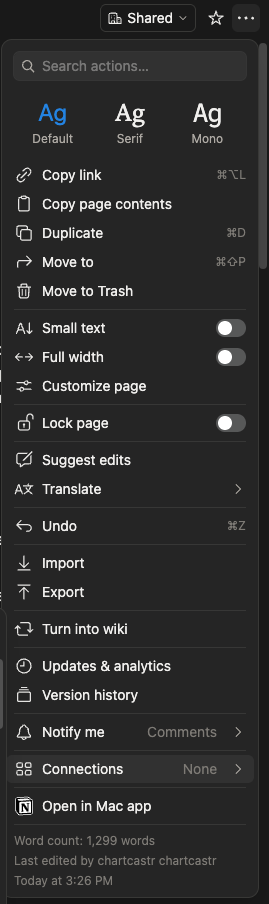
If new files or pages don’t show up automatically, you can manually add the Chartcastr connection to any Notion page (including parent pages to grant access to an entire tree).- Open the Page Menu: Click the three dots
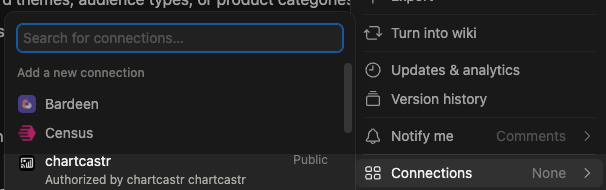
...in the top right corner of the Notion page. - Add Connection: Scroll down to “Connect to” or “Add connections”.
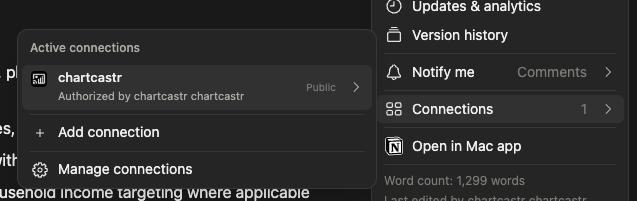
- Find Chartcastr: Search for “Chartcastr” and select it.
- Confirm: Once added, the page and its children will be accessible to Chartcastr.
Rich Link Previews
When you paste a Chartcastr URL into a Notion page, Notion can automatically unfurl it into a rich preview showing connection details, chart images, AI summaries, and status — right inline in your document.Supported URLs
Any URL matchingchartcastr.com/admin/* will be unfurled, including:
- Connection pages — shows connection name, status, and configuration
- Source pages — shows source details and linked integrations
- Job Run pages — shows the chart image, AI summary, and run status
Getting Started
1
Authorize Chartcastr
The first time you paste a Chartcastr link, Notion will prompt you to connect your Chartcastr account. Sign in and approve access — this is a one-time step.
2
Paste a Link
Paste any Chartcastr admin URL into a Notion page. Notion will automatically fetch a rich preview with chart images and metadata.
3
Preview Updates
Previews are fetched each time the page loads, so they always reflect the latest data from Chartcastr.
Availability: Rich link previews require a paid plan (Starter, Pro, or Enterprise).
Example
Pasting a job run URL likehttps://chartcastr.com/admin/connections/jobruns/abc123 will render an inline preview showing:
- The chart image from the most recent run
- AI-generated summary of the analysis
- Run status and timestamp
- Link back to the full Chartcastr dashboard
Troubleshooting
- No preview appears: Ensure you’ve authorized Chartcastr when prompted by Notion. If you dismissed the prompt, try pasting the link again.
- “Feature not available” error: Rich link previews require a paid plan. Upgrade your plan in Chartcastr settings.
- Stale preview: Notion caches previews — reload the Notion page to fetch the latest data.